CrystalDiskMark
Simple disk benchmark software. Measure sequential and random read/write performance of your SSD, HDD, or NVMe drive.
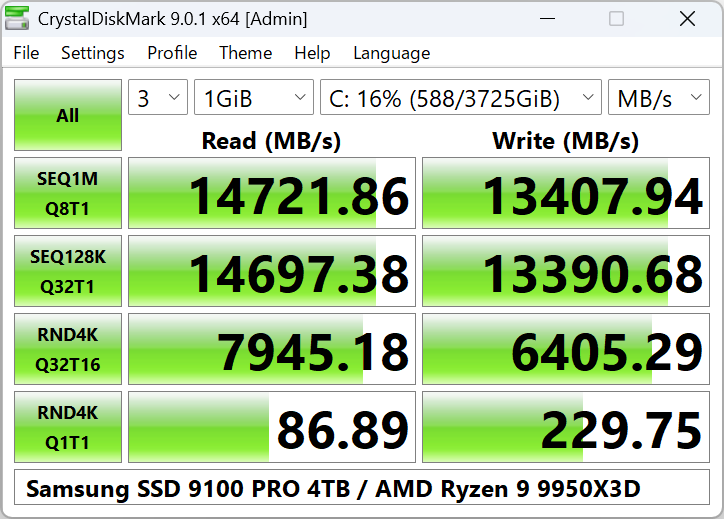
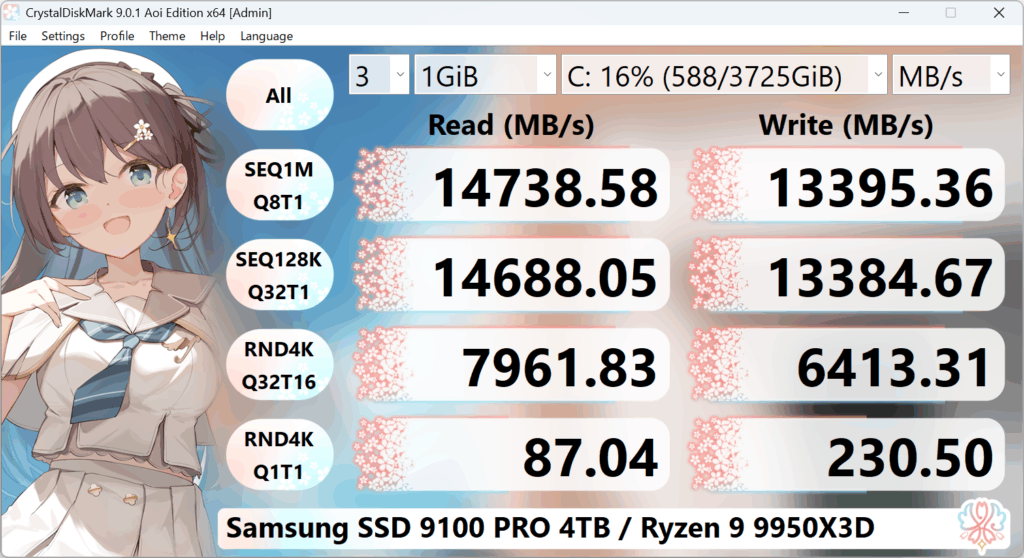
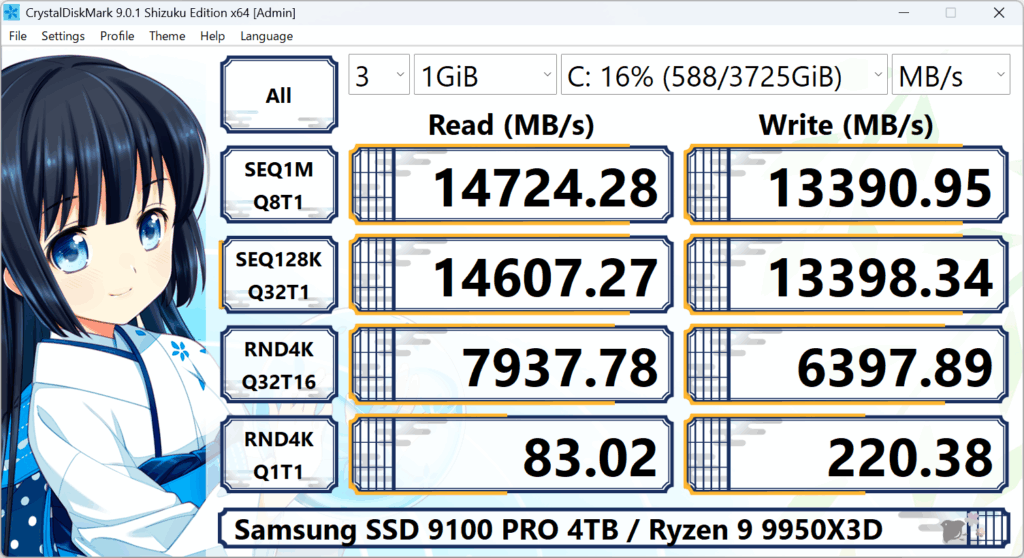
What is CrystalDiskMark?
CrystalDiskMark is a free disk benchmark software for Windows that measures the read and write speed of your storage drives. Whether you have an SSD, HDD, NVMe, or external USB drive, you can run a disk speed test in minutes. The program reports sequential and random performance in MB/s, GB/s, or IOPS, so you can compare drives, check performance after an upgrade, or verify that your storage meets expectations.
No registration or account is required. Download the installer or ZIP, choose your drive and test size, then click All to run the benchmark. Results can be copied to the clipboard or saved as an image for reports and forum posts. CrystalDiskMark is widely used by PC builders, reviewers, IT staff, and home users for SSD benchmark and HDD speed test needs. See our step-by-step guide and FAQ for details.
Key Features
Themes
Multiple themes including Dark, Flower, and DarkRed. Shizuku and Aoi editions offer extra visual themes.
Many Languages
Wide language support so you can use CrystalDiskMark in your preferred language.
Measure Modes
Peak, Real World, and Demo modes. Sequential and random performance (Read, Write, Mix).
Flexible Test Size
Test sizes from 16 MiB to 64 GiB. Choose the right size for your drive (e.g. smaller for USB).
Editions
System Requirements
| OS | Windows XP / Vista / 7 / 8 / 8.1 / 10 / 11, Windows Server 2003–2025 |
| Architecture | x86, x64, ARM64 |
Not supported: Windows 95/98/Me/NT4/2000. Installer and x64 do not support Windows XP/2003 (NT5.x).
Important Notice
- • Running as Administrator hides network drives. To benchmark a network drive, run without admin rights (UAC: No).
- • Some SSDs show different results depending on test data (random vs 0 fill).
- • Results vary with test file size, position, fragmentation, and controller (IDE/SATA/RAID/NVMe) and CPU.
- • “MB/s” = 1,000,000 bytes/sec. Benchmark results are not compatible between different major versions.
- • CrystalDiskMark may shorten SSD/USB memory life due to write load during tests.
Why Use CrystalDiskMark?
Free and trusted
CrystalDiskMark is free for personal and commercial use. It has been used for years by reviewers, system builders, and IT departments. No registration, no account, no bundled software.
Simple and fast
Select your drive, choose test size, and click All. Within minutes you get sequential and random read/write numbers. Copy results to clipboard or save as image for reports and comparisons.
Works with all drive types
Test internal HDDs, SATA SSDs, NVMe SSDs, external USB drives, and network drives (when not run as Administrator). Use different test sizes: small for USB sticks, large for fast NVMe.
Multiple profiles
Default, Peak, and Real World profiles let you see both maximum throughput and more realistic workload performance. NVMe SSD profile is tuned for modern PCIe drives.
What Can You Measure?
A disk benchmark with CrystalDiskMark gives you read speed and write speed in MB/s, GB/s, IOPS, or average latency. This helps you compare SSDs vs HDDs, check NVMe performance, or test USB and network drives. The main tests are:
- SEQ Q8T1 / Q1T1: Sequential read and write with large blocks (e.g. 1 MiB). Good for large file copy and video editing.
- RND Q32T1 / Q1T1: Random read and write with 4 KiB blocks. Reflects OS and application workload.
- Mix: Combined read/write. Available in some profiles for a more realistic mix.
How to Run a Disk Speed Test
To run a disk benchmark with CrystalDiskMark: (1) Download and install or extract the ZIP. (2) Launch the program and select the drive you want to test (C:\, D:\, or a mapped network drive – run as normal user for network drives). (3) Set the test size (e.g. 1 GiB for SSDs, 64–128 MiB for USB). (4) Click All to run all tests, or run individual tests. Results appear in the main window; you can copy to clipboard or save as image. For detailed steps and screenshots, see our How to Use CrystalDiskMark guide. If the benchmark fails or the drive does not appear, check the troubleshooting and FAQ.
Common Questions About CrystalDiskMark
Is CrystalDiskMark free?
Yes. CrystalDiskMark is free for personal and commercial use. No registration or account required. Download from our download page.
Why doesn’t my network drive show in CrystalDiskMark?
If you run CrystalDiskMark as Administrator, Windows does not show mapped network drives. Run it as a normal user (when UAC appears, choose No) so the network drive appears. More in the FAQ.
What test size should I use?
Default 1 GiB is fine for most SSDs and HDDs. Use a smaller size (e.g. 64 MiB or 128 MiB) for slow USB flash drives or old HDDs so the test finishes quickly. For fast NVMe drives, 1–2 GiB is typical. See guide and benchmarks.
Can I test a network or NAS drive?
Yes. Run CrystalDiskMark as a normal user (not Administrator). When UAC appears, click No. Mapped network drives will then appear in the drive list. See FAQ and Troubleshooting.
Why did my benchmark fail?
Often the program does not have permission to create the test file on the drive. Run CrystalDiskMark as Administrator (right-click → Run as administrator) and try again. For other causes see Troubleshooting.
When to Use a Disk Benchmark
A disk speed test with CrystalDiskMark is useful in many situations. Here are the most common:
- Before and after upgrading from HDD to SSD or from SATA to NVMe, to see the real-world improvement.
- When buying or selling a used drive, to verify it still performs as expected.
- To compare two or more drives (e.g. when choosing which SSD to keep in a new build).
- To check if a drive or NAS is limiting your network or system performance.
- After a Windows reinstall or driver update, to confirm storage performance is normal.
- When building or reviewing PCs, to document read/write speeds for reports and comparisons.
- To test external USB drives or SD cards and see which is faster.
- When troubleshooting slow boot or load times, to see if the disk is the bottleneck.
What to Expect: SSD vs HDD vs NVMe
CrystalDiskMark results vary by drive type. Use these as rough guidelines (actual numbers depend on the specific drive, test size, and system):
NVMe SSD (PCIe): Sequential read/write often 2,000–7,000+ MB/s. Random 4K can be tens to hundreds of MB/s. Very fast for both large files and small random access.
SATA SSD: Sequential typically 500–560 MB/s (SATA limit). Random 4K much higher than HDDs. Great for everyday use and games.
HDD (spinning disk): Sequential often 100–200 MB/s. Random 4K usually under 2 MB/s. Fine for bulk storage but slow for OS and apps.
USB 3.x external: Depends on the bridge and drive; often 100–400 MB/s for good SSDs, lower for HDDs or USB 2.0.
What Users Say
“Quick and reliable. I use it to check every new SSD before selling PCs.”
“Compared several tools; CrystalDiskMark is the one I keep installed.”
“Simple UI, no bloat. Perfect for comparing HDD vs SSD upgrade.”
Tips for Accurate Results
- Close other programs that use the disk (browsers, backup, antivirus scans) before running the benchmark.
- Use the same test size and same CrystalDiskMark version when comparing two drives.
- For NVMe SSDs, select the NVMe SSD profile in Settings for representative numbers.
- Run the test several times (e.g. 5 runs by default) and note the average; a single run can vary.
- If the drive is almost full or heavily fragmented, results may be lower than on a clean drive.
- Let the drive cool between runs if testing NVMe; thermal throttling can lower speeds.
- Do not run the benchmark on the system drive while heavy swap or temp usage is happening; use another drive or reduce background activity.
Benchmark Terms Explained
Understanding the numbers and labels in CrystalDiskMark helps you read results and compare drives. Here are the main terms:
MB/s and GB/s
Megabytes per second and gigabytes per second. CrystalDiskMark uses 1 MB = 1,000,000 bytes (decimal), not 1,048,576. Higher numbers mean faster transfer speed.
IOPS
Input/Output Operations Per Second. How many small read/write operations the drive can do in one second. Important for databases, servers, and random workloads.
SEQ (Sequential)
Tests large, contiguous blocks (e.g. 1 MiB). Simulates copying big files, video editing, or loading large assets. SEQ Q8T1 = 8 queues, 1 thread; Q1T1 = 1 queue, 1 thread.
RND (Random) 4K
Tests random read/write with 4 KiB blocks. Reflects OS boot, app launch, and many small file operations. Often the biggest difference between HDDs and SSDs.
Q = Queue, T = Thread
Q8T1 means 8 commands in queue, 1 thread; Q1T1 means 1 command, 1 thread. Higher queue depth can show higher throughput on SSDs and NVMe.
Mix (Read/Write)
Combined read and write workload. Some profiles include a mix test to simulate more realistic usage where both happen at once.
Test Size Quick Reference
Choosing the right test size affects how long the benchmark runs and how meaningful the result is for your use case.
| Drive type | Suggested test size | Notes |
|---|---|---|
| NVMe SSD (fast) | 1–4 GiB | Larger size can show sustained speed; 1 GiB is common for quick checks. |
| SATA SSD | 512 MiB – 1 GiB | 1 GiB default is fine; smaller if you want a faster run. |
| HDD (internal) | 256 MiB – 1 GiB | Larger size takes longer; 1 GiB is still reasonable. |
| USB flash drive | 64–128 MiB | Keeps test short; many USB sticks are slow so 1 GiB can take a long time. |
| External USB HDD/SSD | 256 MiB – 1 GiB | Depends on bridge and drive; 512 MiB is a good middle ground. |
| Network / NAS drive | 128 MiB – 512 MiB | Often limited by network; smaller size avoids very long runs. |
Use the same test size when comparing two drives for a fair comparison.
Who Uses CrystalDiskMark?
CrystalDiskMark is used by a wide range of people and professionals who need reliable disk speed numbers:
PC builders & enthusiasts
Verify new SSD or NVMe performance after installation, compare drives before choosing one for a build, and document specs for forums and reviews.
Video editors & creators
Check that storage is fast enough for 4K/8K workflows, compare internal vs external drives for project and cache locations.
Gamers
Test game drive speed, compare NVMe vs SATA SSD load times, and confirm a new drive meets expectations before installing large games.
IT staff & sysadmins
Benchmark servers, workstations, and NAS; troubleshoot slow storage; document performance for change requests and audits.
Resellers & refurbishers
Quickly test used or refurbished drives before sale, ensure they perform within expected range, and provide benchmark results to buyers.
Home users
Check if an upgrade from HDD to SSD made a difference, test external USB drives, and understand why a PC might feel slow.
CrystalDiskMark vs Other Benchmark Tools
Several tools can measure disk speed. Here’s how CrystalDiskMark fits in:
CrystalDiskMark
Free, no install required (portable ZIP), simple interface, sequential and random tests, multiple editions and themes. Very popular for quick SSD/HDD/NVMe checks. Results in MB/s, GB/s, IOPS. No registration.
ATTO Disk Benchmark
Free; focuses on different block sizes and transfer sizes. Some vendors use ATTO for vendor specs. Less common for casual comparison than CrystalDiskMark.
AS SSD Benchmark
Free; popular in Europe, shows sequential and 4K, and an “overall” score. No longer updated for newest Windows but still used. Different scoring system than CrystalDiskMark.
Blackmagic Disk Speed Test (Mac)
For macOS; video-focused. Not for Windows. Often used by video editors on Mac.
CrystalDiskMark is a strong default choice on Windows for most users: simple, fast, and widely cited in reviews and forums.
Related Software: CrystalDiskInfo
CrystalDiskInfo is a free tool that shows S.M.A.R.T. (health) data for your drives. It does not benchmark speed; it reports temperature, power-on hours, reallocated sectors, and other health attributes. Many users run both: CrystalDiskInfo to check drive health and CrystalDiskMark to measure speed. It supports HDDs, SSDs, and NVMe and can alert you if a drive reports critical health issues.
Summary: CrystalDiskMark = speed/performance. CrystalDiskInfo = health/S.M.A.R.T. Both are free and work well together for a complete picture of your storage.
Real-World Scenarios: What the Numbers Mean
Connecting benchmark results to everyday use helps you decide if a drive is “fast enough” for your needs.
Copying a 10 GB file
Sequential write speed matters. At 500 MB/s, it takes about 20 seconds; at 100 MB/s (typical HDD), about 100 seconds. NVMe at 3,000 MB/s can do it in roughly 3–4 seconds (excluding overhead).
Windows boot and app launch
Random 4K read (and to some extent write) reflects this. SSDs with high random 4K (e.g. tens of MB/s or more) feel much snappier than HDDs (often under 2 MB/s random 4K).
Video editing (scrubbing, export)
Sequential read and write are key. High sequential (e.g. 2,000+ MB/s on NVMe) allows smooth scrubbing and fast exports when the project and cache are on fast storage.
Game loading
Mix of sequential and random; modern games benefit from fast sequential and good random 4K. NVMe and SATA SSDs both improve load times over HDDs; NVMe can be faster for very large assets.
Quick Checklist: Running Your First Benchmark
- Download CrystalDiskMark from the download page (Standard, Aoi, or Shizuku edition).
- Extract the ZIP or run the installer. No account or registration needed.
- Close heavy disk-using apps (browsers with many tabs, backup, cloud sync) for more consistent results.
- Launch CrystalDiskMark. If you need to test a network drive, run as a normal user (click No when UAC asks for admin).
- Select the drive you want to test (e.g. C:\, D:\, or a mapped network drive).
- Set test size: 1 GiB for most internal SSDs/HDDs; 64–128 MiB for USB sticks or slow drives.
- Click All to run all tests, or run a single test (e.g. SEQ 1MiB Q8T1) for a quick check.
- Wait for the runs to finish. Copy results to clipboard or save as image for your records.
- For more detail, see the How to Use guide and benchmark results page.
Ready to benchmark your drive?
Download CrystalDiskMark for free. No registration required.
Download CrystalDiskMark